Better F3 Debug Screen
BedrockTexture packRealisticby oSkullo
About this texture pack
Enhance your Bedrock survival experience with a fully functional, Java-style F3 debug screen featuring real-time data and a custom settings menu.
Read the author’s full description (363 words)
Written by oSkullo.
# Better F3 Debug Menu
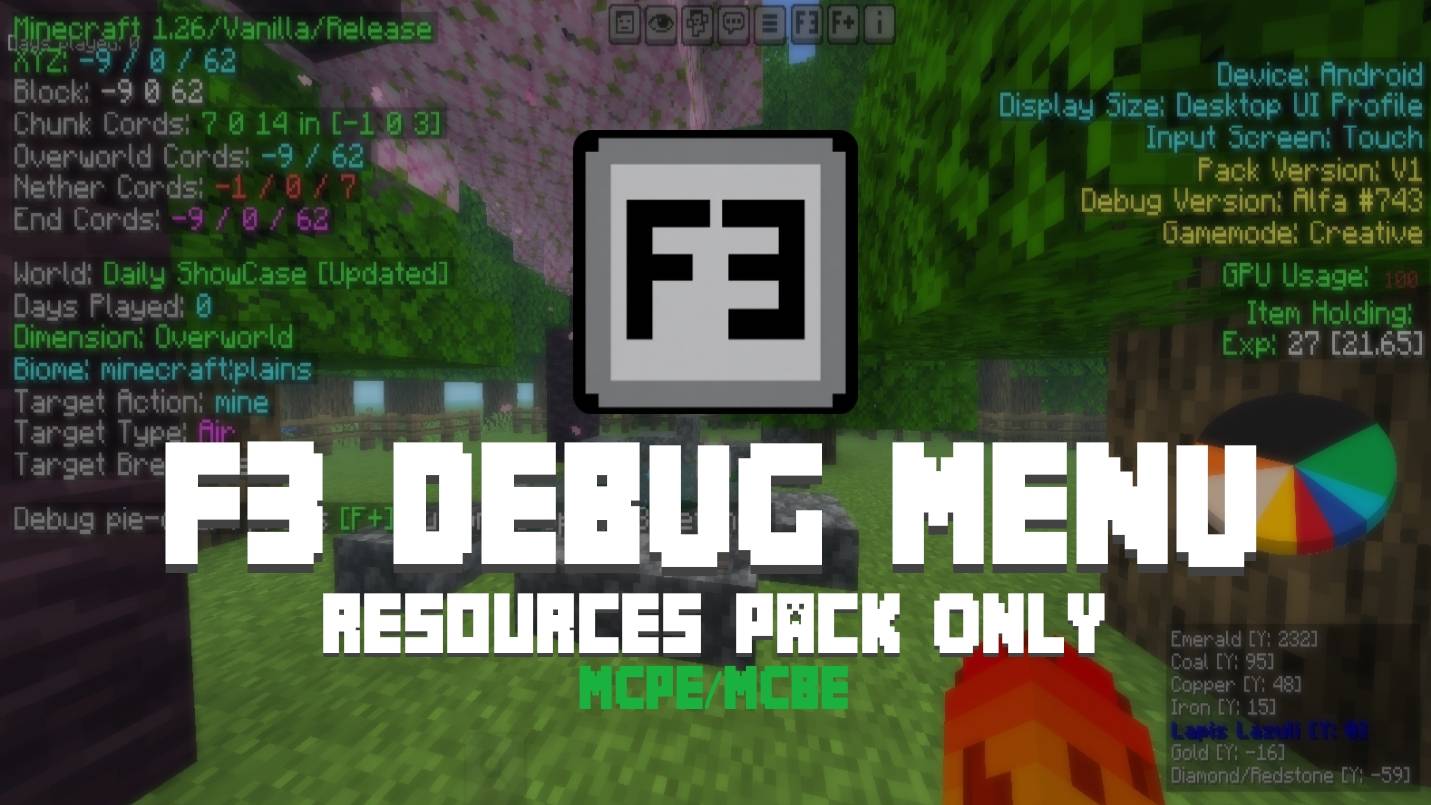
Brings the authentic **Java Edition F3 debug screen** experience to Minecraft Bedrock. Every stat you're used to checking on Java — position, biome, target block, ore Y-levels — now lives right on your Bedrock HUD, styled to match the original look and feel.
---
## ✨ Features
**Full Java-style debug readout**
- Live XYZ / Block / Chunk coordinates
- Overworld, Nether, and End coordinate conversions
- World name & total days played
- Dimension and biome
- Target block info: action (mining/using), block type, and whether it's breakable
- Device info: platform, display size, input method
- Gamemode, GPU usage, item currently held, and XP (level progress)
**Ore Locator Pie Chart**
- A built-in ore-scanning pie chart, just like the classic Java debug overlay
- Lists nearby Y-levels for Emerald, Coal, Copper, Iron, Lapis Lazuli, Gold, and Diamond/Redstone at a glance
**Compass & Clock**
- Quick-glance compass and in-game clock icons built right into the HUD
**Player List Overlay**
- Toggleable player list overlay for quick lobby/server checks
**Fully Customizable Settings Menu**
- Tap the on-screen **[F ]** button to open the in-game F3 Settings panel
- Toggle individually: Color Codes, Minimal Info mode, Player List, Pie Chart, Touch GUI visibility, Info display, and Scoreboard visibility
- No need to dig through resource pack settings — everything's accessible mid-game
**Two Layout Options (Subpacks)**
- **Default / Phone UI** — tuned for phones and compact screens
- **Large / Tablet UI** — a rebalanced layout for tablets and Desktop UI Profile devices, so nothing overlaps or gets cut off on larger screens
- Switch between them anytime from the pack's settings (gear icon) in Global Resources
---
## 🎮 How to Use
1. Apply the resource pack to your world (or globally).
2. In-game, tap the **[F ]** button on your screen to open the F3 Settings Menu.
3. Toggle whichever info you want visible — Minimalist Mode, Colors, Player List, and Pie Chart are all switchable on the fly.
4. On a tablet or larger screen and the HUD looks cramped? Go to the pack's settings (gear icon in Global Resources) and switch to the **Large / Tablet UI** option.
---
## 📱 Compatibility
- Works on Android, iOS, Windows, and other Bedrock platforms
- Touch and KBM input supported
- Two selectable UI scales for phone and tablet/desktop-sized screens
---
## 🐛 Found a Bug?
Report it on Discord: **https://discord.gg/GCjpMvyUA9**
---
## 👤 Credits
Created by **oSkullo**
How to install
- Download the file below. On iOS or Android, open it from your Downloads with Minecraft; on Windows, double-click it.
- Minecraft imports the pack automatically. Enable it in your world’s settings under Behavior Packs or Resource Packs; an add-on usually needs both.
- Playing on a Realm or server? Everyone needs the same packs, and the host has to enable them.
- Starting a new world? Choose its seed first: the Seed Map shows villages, structures and biomes near spawn for any Bedrock seed.
Advertisement
More texture packs
- Texture packs
Dark Fantasy Visuals (Bedrock Resource Pack)
by Starfish Studios Inc
- Downloads
- 1.4M
- Rating
- 4.0