Blade's Miner
BedrockScriptUtilityby BladeLow
About this script
Area mining for Bedrock!
Read the author’s full description (677 words)
Written by BladeLow.
⛏️ Blade Multi Miner
Mine smarter, not harder.
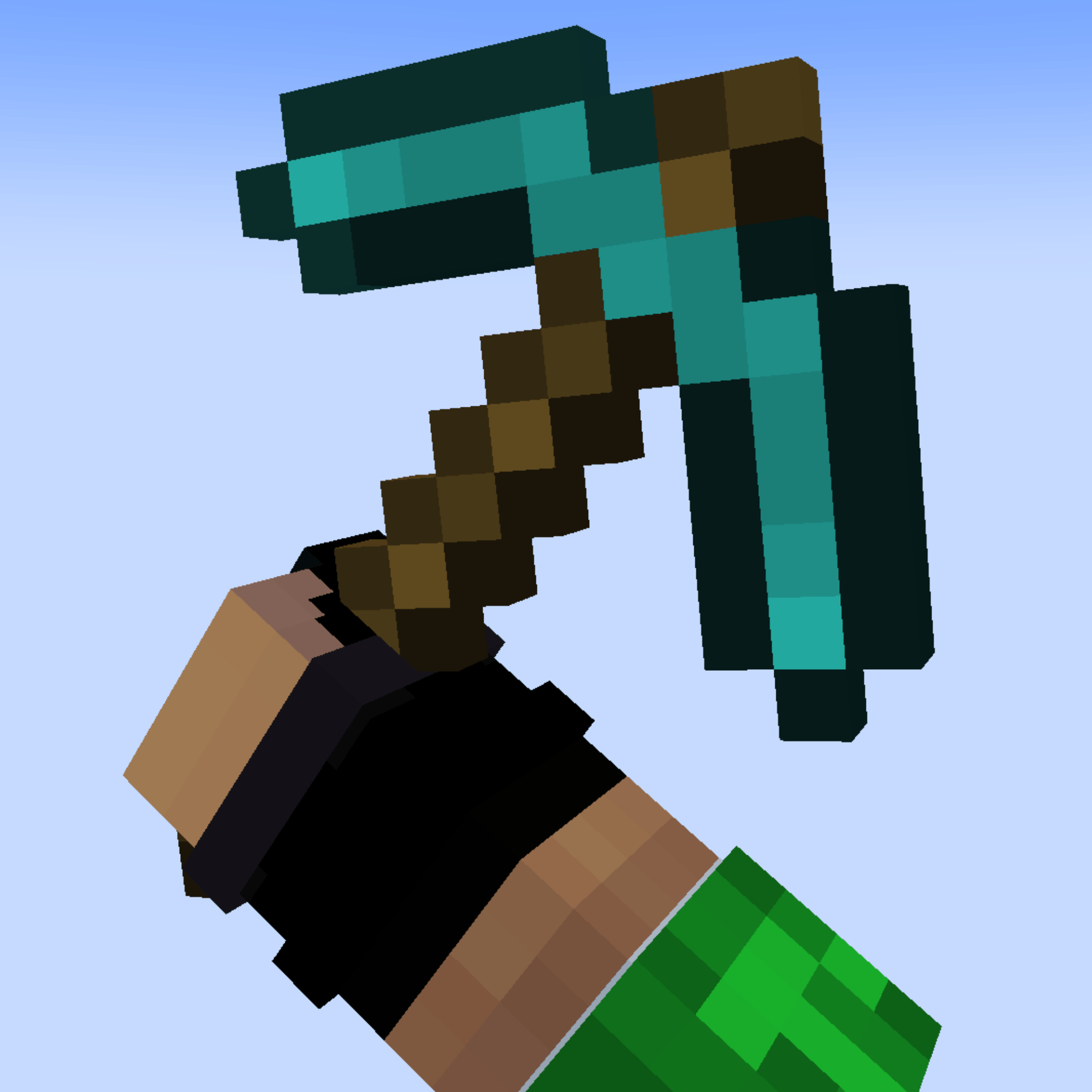
Tired of breaking blocks one by one? Meet Blade Multi Miner — an area-mining add-on that transforms your pickaxes, axes, shovels, and hoes into powerful multi-block mining tools!
Choose your preferred mining shape, customize the area size, and break multiple blocks in a smooth, center-outward wave. Whether you're digging tunnels, clearing land, collecting ores, or gathering wood, Blade Multi Miner makes mining faster and more convenient while keeping the familiar Minecraft survival experience.
✨ Features
●⛏️ Multi-Tool Support — Works with pickaxes, axes, shovels, and hoes across all supported tiers.
●🔷 Six Mining Modes — Choose from 1×1, Cube, Flat Plane, Circle, Sphere, and Custom.
●⚙️ Custom Mining Areas — Set your own Width × Height × Depth in Custom mode.
●🛠️ Individual Tool Settings — Each tool remembers its own selected mode and size. Use a 5×5×5 area with your diamond pickaxe while keeping your iron shovel at 3×3!
●🌊 Smooth Wave Mining — The center block breaks first, followed by surrounding blocks in an expanding wave, with a sound effect for each ring.
●💎 Enchantment Support — Silk Touch, Fortune, and Unbreaking work with the additional blocks too.
●🔋 Balanced Durability — Mining larger areas consumes more durability.
●🛡️ Tool Protection — Area mining stops before your tool breaks, preserving at least 1 durability point.
●🚀 Performance-Friendly Mining — Larger mining areas are processed in smaller steps to help keep gameplay smooth.
🎮 How to Use
Getting started is simple!
-
Hold a supported pickaxe, axe, shovel, or hoe.
-
Crouch Right-Click to open the mining configuration menu.
-
Select your preferred mining mode.
-
Choose a mining size or enter custom dimensions.
-
Mine a block normally and watch the surrounding area get mined automatically!
Your selected mining mode is displayed in the tool's item lore and on the action bar while holding it, so you can quickly check your current settings.
🔨 Mining Modes
Mode Description 1×1 Standard Minecraft mining. No additional blocks are mined. Cube Mines a cube extending into the blocks from the face you hit. Flat Plane Mines a flat, square-shaped area on the face you hit. Circle Mines a circular disc on the face you hit. Sphere Mines a spherical area centered on the block you mine. Custom Define your own Width × Height × Depth.Each mode offers a different way to mine, dig, and clear blocks according to your needs.
📏 Mining Size Limits
The maximum size per axis depends on your tool's tier, helping maintain balance between early-game and late-game progression.
Tool Tier Maximum Size per Axis Wooden 3 Stone 3 Golden 3 Copper 3 Iron 5 Diamond 7 Netherite 9Want a different balance? These limits can be adjusted through the script settings to suit your gameplay or server.
⚠️ Important Notes
●Crouch Right-Click opens the configuration menu instead of triggering the tool's usual right-click action, such as stripping logs, creating paths, or tilling soil. Normal right-click behavior remains unchanged when you're not crouching.
●Additional blocks mined by the area-mining process do not award XP and do not produce the usual block-breaking particles.
●Each tool is restricted to its intended block categories:
● Pickaxe: Stone and ores
● Axe: Wood
● Shovel: Dirt and sand
● Hoe: Leaves and similar blocks
● In Creative mode, mined blocks do not drop items, following normal Minecraft behavior.
● Larger mining areas consume more durability, and area mining stops before the tool breaks.
📦 Installation Guide
-
Download the add-on file.
-
Open the downloaded file with Minecraft, or place the pack folder inside your development_behavior_packs directory.
-
Create a new world or edit an existing one.
-
Navigate to Behavior Packs and activate Blade Multi Miner.
-
Enter your world, hold a supported tool, and crouch right-click to configure it.
You're ready to mine! ⛏️
🖥️ Compatibility
● Edition: Minecraft Bedrock Edition
● Platforms: Windows, mobile, and console platforms where add-ons are supported
● Tested Version: Add your verified Minecraft game version here.
Compatibility may vary depending on your Minecraft version and platform.
💬 Feedback & Suggestions
Found a bug, experienced an issue, or have an idea for a new mining shape or tool?
Leave a comment on CurseForge! Feedback and suggestions are always welcome and can help improve future updates.
Created by BladeLow ❤️
Thanks for checking out Blade's Miner. Happy mining!
How to install
- Download the file below. On iOS or Android, open it from your Downloads with Minecraft; on Windows, double-click it.
- Minecraft imports the pack automatically. Enable it in your world’s settings under Behavior Packs or Resource Packs; an add-on usually needs both.
- Playing on a Realm or server? Everyone needs the same packs, and the host has to enable them.
- Starting a new world? Choose its seed first: the Seed Map shows villages, structures and biomes near spawn for any Bedrock seed.
Advertisement