Vitrum Fixer: Auto-Reverter Addon
BedrockScriptUtilityby Verocrft
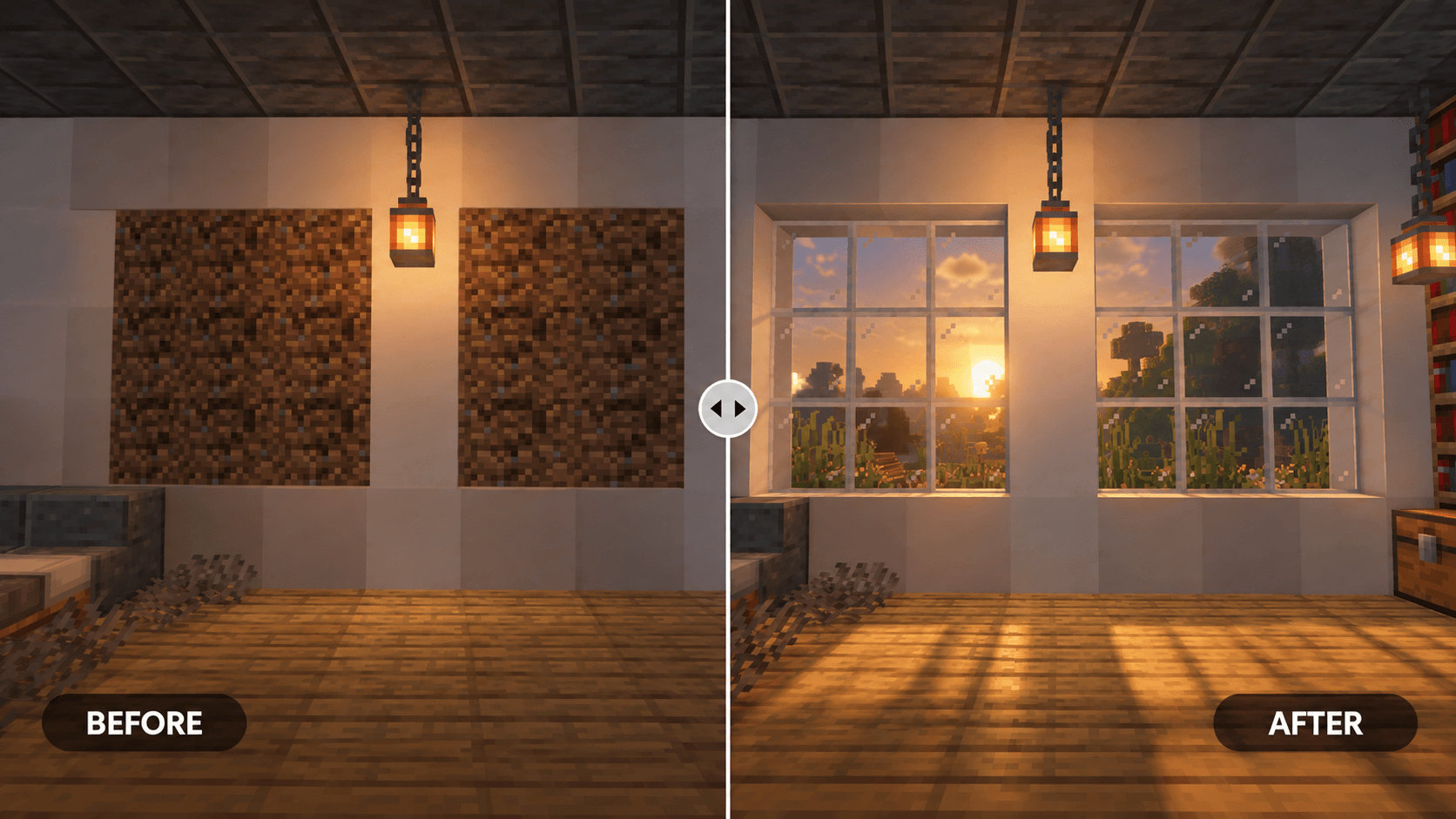
About this script
Companion safety tool for Vitrum glass that permanently reverts every Vitrum block back to vanilla glass, so builds stay intact after uninstalling.
Read the author’s full description (440 words)
Written by Verocrft.
Vitrum Fixer: Auto-Reverter Addon
The official safe uninstaller and world fixer for Vitrum: Seamless Connected Glass. Automatically detects placed Vitrum glass blocks (the "question-mark dirt blocks" left behind if Vitrum is removed) and reverts them cleanly back into 100% native vanilla Minecraft glass.
Achievement Friendly: no experimental toggles required, so achievements stay fully enabled in your world.
What Is Vitrum Fixer?
Did you use Vitrum (Seamless Connected Glass) in your builds, but now want to uninstall the addon or share your world with vanilla players? Or did you accidentally disable the addon and discover that all your glass turned into dirt blocks with question marks (tile.info_update)?
Vitrum Fixer is here to save your world. Once installed, it:
- Instantly recognizes all 37 Vitrum glass blocks and panes, so they no longer appear as unknown dirt blocks.
- Runs an automatic 1-chunk radius background scanner around the player.
- Permanently converts every Vitrum glass block back into its native vanilla Minecraft counterpart (minecraft:glass, minecraft:red_stained_glass, panes, etc).
- Once converted, your world contains 100% permanent vanilla glass, you can safely remove Vitrum Fixer and keep your buildings intact forever.
How to Use
Step 1: Install Vitrum Fixer
- Download Vitrum_Fixer.mcaddon and tap/double-click to import it into Minecraft.
- In World Settings, activate Vitrum Fixer [BP] under Behavior Packs and Vitrum Fixer [RP] under Resource Packs.
Step 2: Open World & Walk Around
- Enter your world and fly or walk around your buildings and glass structures.
- The scanner automatically detects all Vitrum glass within a 1-chunk radius (48x48 blocks) around you.
- An actionbar notification shows progress as blocks are converted, e.g. "Reverted 120 glass in chunk! (Total: 450)".
- Once you've visited all your glass builds and the actionbar stays quiet, all glass has been successfully restored to vanilla.
Step 3: Remove Vitrum Fixer
- Save and quit the world.
- Go to World Settings and deactivate/remove Vitrum Fixer.
- Re-enter your world, all your glass windows and domes are now 100% permanent vanilla glass, zero dirt question marks forever.
Additional Controls
- Manual Re-Scan Command: run /scriptevent vitrum:fix in chat to force a fresh re-scan of surrounding chunks.
- Status Check Command: run /scriptevent vitrum:status to see total converted blocks and active queue status.
- Single-Block Tap: interacting (right-click/tap) directly on any Vitrum block also immediately converts it to vanilla.
Conversion Mapping
Vitrum Block Reverted Vanilla Block vitrum:glass minecraft:glass vitrum:tinted_glass minecraft:tinted_glass vitrum:chiseled_glass minecraft:glass vitrum:glass_pane minecraft:glass_pane vitrum:chiseled_glass_pane minecraft:glass_pane vitrum:<color>_stained_glass minecraft:<color>_stained_glass vitrum:<color>_stained_glass_pane minecraft:<color>_stained_glass_paneCompatibility
- Designed specifically as a companion tool for Vitrum: Seamless Connected Glass, not a standalone glass addon.
- No experimental toggles required, safe for achievement-enabled worlds.
- Asynchronous chunk scanning keeps performance impact minimal, even across large glass-heavy builds.
What’s new in the latest update
The author’s notes for the file uploaded .
v1.0.0: Initial Release
- Recognition and safe conversion for all 37 Vitrum glass blocks and panes back to vanilla equivalents.
- Automatic 1-chunk radius background scanner with actionbar conversion progress.
- Manual re-scan and status check commands, plus single-block tap conversion.
How to install
- Download the file below. On iOS or Android, open it from your Downloads with Minecraft; on Windows, double-click it.
- Minecraft imports the pack automatically. Enable it in your world’s settings under Behavior Packs or Resource Packs; an add-on usually needs both.
- Playing on a Realm or server? Everyone needs the same packs, and the host has to enable them.
- Starting a new world? Choose its seed first: the Seed Map shows villages, structures and biomes near spawn for any Bedrock seed.
Advertisement