Bedrock UI+
BedrockTexture packPvpby Bruhh69
About this texture pack
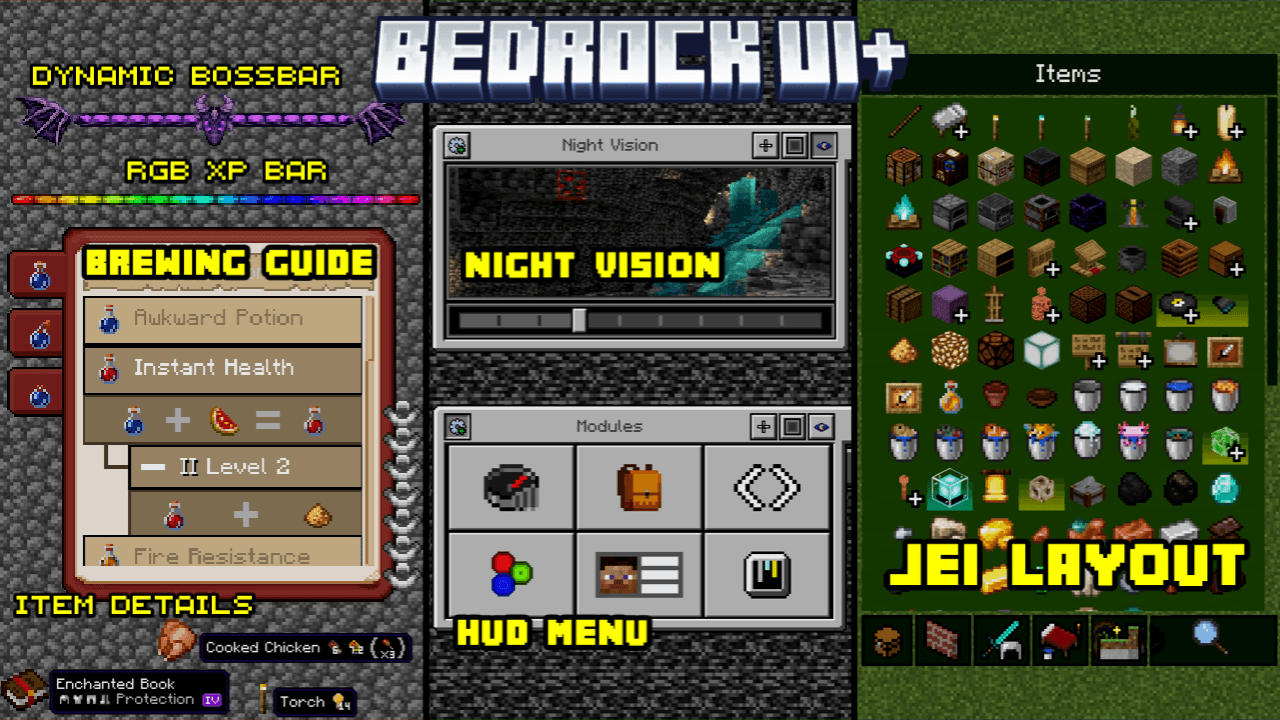
A brand new ui Overhauled from hud+, this ui improves a lots of ui screens, also have so many features that Will helps you in gameplay, such as survival, PVP, etc.
Read the author’s full description (973 words)
Written by Bruhh69 for the MCPEDL post, shown as published.
Showcase Video
https://youtu.be/eECcphhufvU?si=mw8iLXix56fR6CTA
Start Screen
- Moved play button to bottom left
- exit button under the play button
- hide gui button
- Moved dressing room button, marketplace button, and settings button into bottom
- realm button (only visible when you connected to internet)
- profile section on top left
- extend button to show more button
- achievement button, invitation button, feedback button, and manage Account button on profile section
Settings Screen
- Transparent background
- Quick Camera settings
- Quick difficulty settings
- And more quick settings
HUD Screen
- Menu button beside of emote button
- F1 button (hide gui) beside of pause button
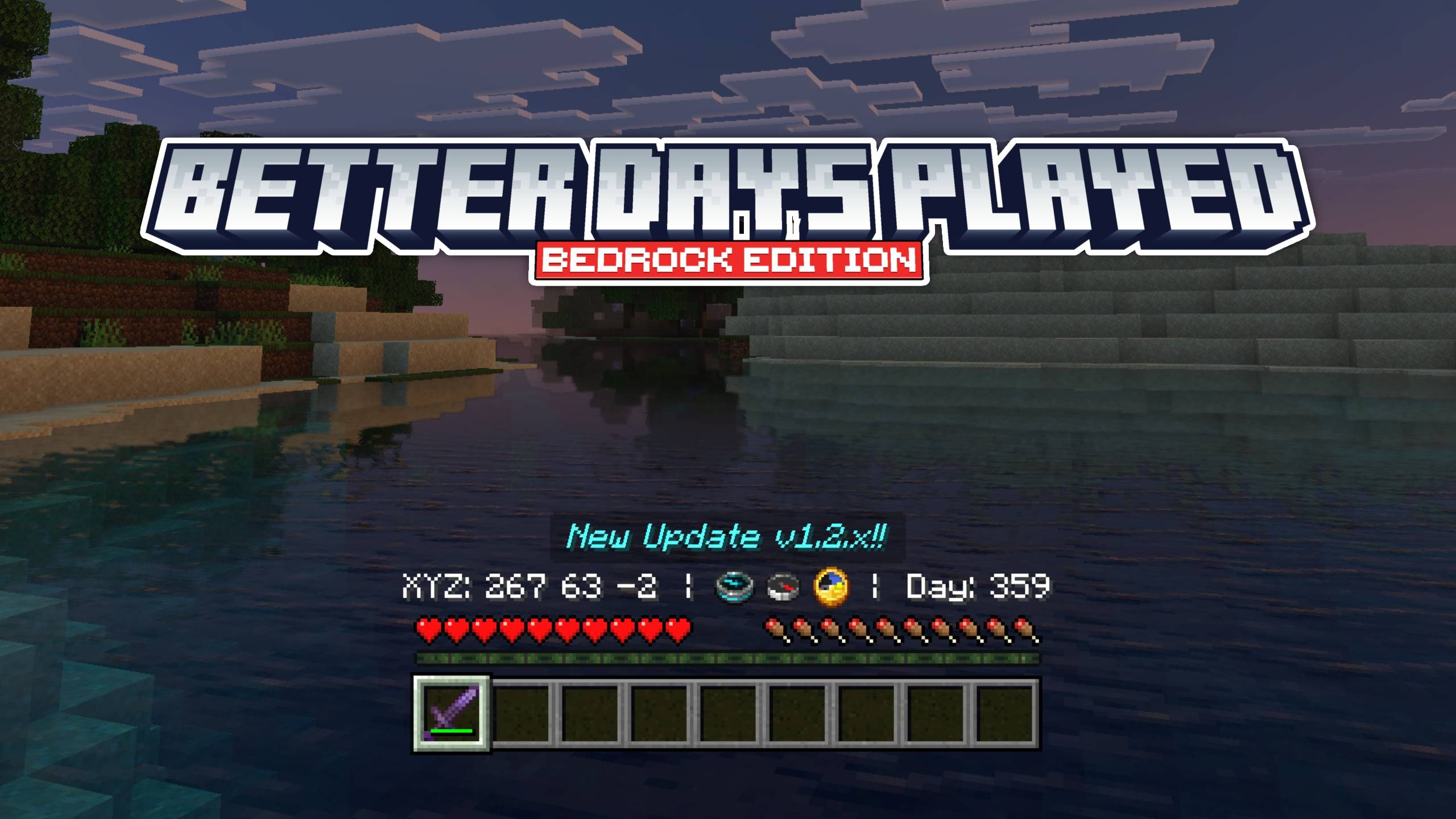
- Clock and compass on bottom left (functional)
- XP percentage on the left side of xp bar
- XP requirement for level up on right side of xp bar
- Improve xp number into similar with java xp number
- Java bottom chat
- Hotbar coord and day played
- Clear item name
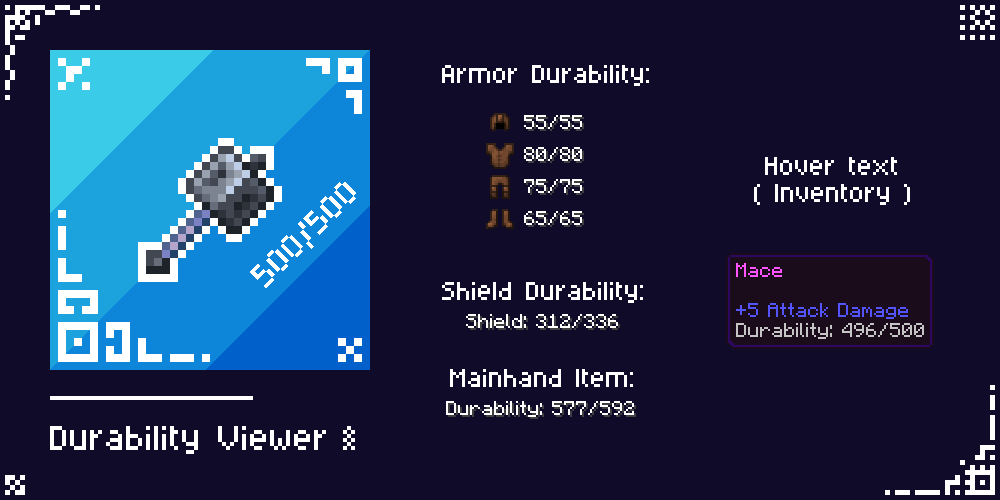
- Durability Viewer
- Low durability warning
- New dynamic bossbar texture for Ender dragon, wither, and Raid
- Menu screen
- New pause screen
- There are some button of modules contents, that is Debug screen, Inventory HUD, Hotbar selector button, RGB xp bar, Player List HUD, And gamma slider (Beside of custom hotbar texture button)
- Also it have 2 customisation tab (Will explained on the next image)
- And also there is settings for hud screen (gear icon)
- open pause screen first and you can activate the Menu on top left
- On windows, You can click ESC key to close the menu
- Debug screen
- There are some information in the debug screen, that is FPS Counter, world name, current gamemode, Nether to overwold position/overwold to Nether position, Chunk position, item name, and item id aux display
- Inventory HUD
- This Will show any items in your inventory so you no longer need to open inventory for checking items
- Hotbar selector (next to hotbar)
- It Will change your selected hotbar to left or right
- RGB XP Bar
- It have animation
- Player list hud
- You can click the player name or player gamerpic like in the image
- Ore Visualizer
- It's shows the amount of ore you can find depends on your Y coordinate
- At the top right, there's a ore chart. Longer the chart, more ores
- There's also a best y level finder, just follow the arrow
- Yellow arrow= go up, blue arrow = go down
- Custom crosshairs
- There are 8 different crosshairs texture
- Also there is a RGB button, if you click it, your crosshair Will be rgb
- Custom hotbar (1) and selected hotbar textures (2)
- There are 10 variants for hotbar textures
- There are 20 variants for selected hotbar texture
- It Will looks like this
- Night vision menu
- Makes your screen brightghter, Recommended using 2 - 4 brightness level
- More settings menu
Chat Screen
- Now chat screen become more clean with transparent background
- Change some of textures into transparent black and minimize the chat history in order to match with java edition
- Added chat autocomplete above of send message button
- Clean command section
- All commands now are clickable and completed your command automatically
- Temporary Note
- Warning! You will lose your notes of you exit your world
- Calculator
Container Screens
*Some of container ui's Will have colorful texture container
Inventory screen
- Jei layout
- Quick modes button
- Inventory shortcut
- Quick Craft button
- Item Rarity Viewer
- Yellow = uncommon
- Light blue = rare
- Magenta = epic
- There's also non transparent variant of Jei, see at the bottom at config section to use is
- Colored item name border, you need to rename the item first, color codes:
- §h = quartz
- §i = iron
- §j = netherite
- §m = redstone
- §n = copper
- §p = gold
- §q = emerald
- §s = diamond
- §t = lapis
- §u = amethyst
- Colorful Bundle Tooltip
- The color Will change according to bundle color
- This is available for any bundles color
Chests
- Chest and double chest
- Search items
- Shulker box
- Ender chest
- Barrel
Crafting table
- Quick craft
- Quick modes
- Jei layout
Cartography table
Smithing table
Furnaces
- Furnace
- With remaining fuel percentage and output percentage
- Blast furnace
- Smoker
Brewing stand
- Brewing Guide
- Remaining fuel percentage
- Output percentage
- Search potion
Anvil
Grindstone
Beacon
Stonecutter
- Quick craft for stonecutter
Hopper
Enchanting table
Dropper
Loom
Dispenser
Villager
- Unlocked all trades without level up the villager
- Quick trade
Extras
- Item Details (currently supported languages: English, Spanish, and Indonesian)
- Light level info
- Hunger points and saturation points info
- Enchantments info with tools icon
- Bundle item count
- Item tooltips
Configurations (_global_variables.json)
- $use_jei_layout = you can change it to false if you don't like the Jei layout
- $transparent_jei = true is default, change to false to use the non transparent variant
- $item_hover_text_position = bottom_right (default), bottom_left, top_left, top_right
You can do:
- Modify this pack fos personal use only
- Makes review for this pack (tag my YouTube @bruhh69._. in your description)
- Sharing download link only with mcpedl or curseforge
You can't do:
- Sharing modified pack
- Sharing download other than mcpedl or curseforge link
- Claimed this pack as your pack
- Uploading this pack in 3rd party website (ex: 9minecraft and etc.) without my permission
- Use anything in the pack without my permission
If you do one of it or more, beware of the copyright strike!
Please note!
This pack currently supports English, Spanish, and Indonesian languages, Please use the supported language to prevent errors!
Fortunately, this pack now supported windows or PC.
Credits
Bedrock Tweaks (https://bedrocktweaks.net) - brewing guide (overhauled by me), quick chat, visible trade, no help button, dark mode ui, lower fire.
ZackyProYT (https://m.youtube.com/@zackyproyt) - for improving debug screen, xp percentage, xp indicator.
Dal4y (https://www.planetminecraft.com/member/dal4y) - Dal4y's Tooltip, improving dynamic bossbar textures.
Redstone Chicken (https://youtube.com/@redstonechickenmc) - Colorful Container Textures.
TheAndromedarius (https://mcpedl.com/user/the-andromedarius) - Quick Loot Template, better villager container bindings template.
AdrBlackind & DimzCraft (https://youtube.com/@dimz_craft) - Chunk Coordinates.
T1M0THY (https://youtube.com/@T1M0THYYt, https://www.curseforge.com/minecraft-bedrock/texture-packs/toggle-night-vision/download/6192422) - Quick Settings (F5), Night Vision Toggle.
tlgm (https://mcpedl.com/user/real_tlgm) Show hud animation.
ItzRiyo157 (https://youtube.com/@itzriyo157) helping fixing code, tempnotes and calculator template.
YuuhaLand (https://github.com/YuuhaLand/Tabkey_Playerlist_UI/releases) - Tab player list source code/template.
Pepe (https://mcpedl.com/user/pepeonmcpedl) Durability Viewer, FPS Counter, inventory hud, bundle item counter, item tooltips.
Sugger (https://mcpedl.com/user/sugger) hud variable code.
amBro (https://youtube.com/@axmbro?si=elgfnHnjcT-b7O5T) menu button mapping.
What’s new in the latest update
The author’s notes for the file uploaded .
Changes:
- Fixed wrong quick loot position on chests
- Fixed item separate progress bar covered by chest search item
- New Controls and more clean
Video
How to install
- Download the file below. On iOS or Android, open it from your Downloads with Minecraft; on Windows, double-click it.
- Minecraft imports the pack automatically. Enable it in your world’s settings under Behavior Packs or Resource Packs; an add-on usually needs both.
- Playing on a Realm or server? Everyone needs the same packs, and the host has to enable them.
Advertisement