How to Install Minecraft Bedrock Add-ons and Packs
BedrockYou downloaded the add-on, tapped the file, and nothing happened. Or it imported and the world looks exactly the same. Both are fixable in a minute once you know what each file type does and the one settings screen that actually switches a pack on.
Updated · 7 min read · Bedrock up to 26.3
First, know which file you have
Bedrock packs come in four wrappers. They are all zip archives with a different ending, and the ending tells Minecraft what to do when it opens one. Look at the file name on the author's page before you download, because it decides every step after this.
| File | What's inside | Where it ends up |
|---|---|---|
| .mcaddon | Usually a behavior pack and a resource pack together | Both packs are imported; you still switch them on per world |
| .mcpack | One pack: a resource pack, a behavior pack or a skin pack | The matching pack list, or the Dressing Room for skins |
| .mcworld | A complete world (maps, adventure worlds, builds) | Straight into your worlds list, ready to play |
| .mctemplate | A world template | The Templates tab when you create a new world |
Some add-ons ship as two .mcpack files instead of one .mcaddon, often named with BP and RP at the end. That's the same thing split in half: import both. If the author offers a Core and a Full download, or a Pro and a Lite one, you only need one of them; read their note on which is which.
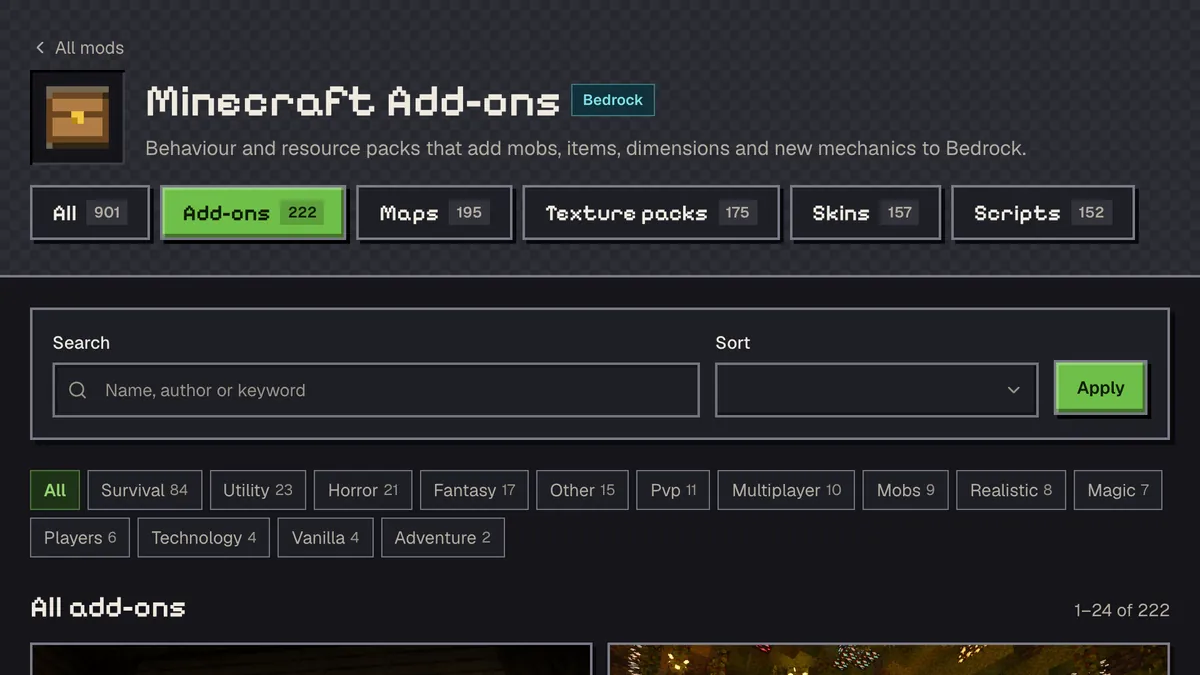
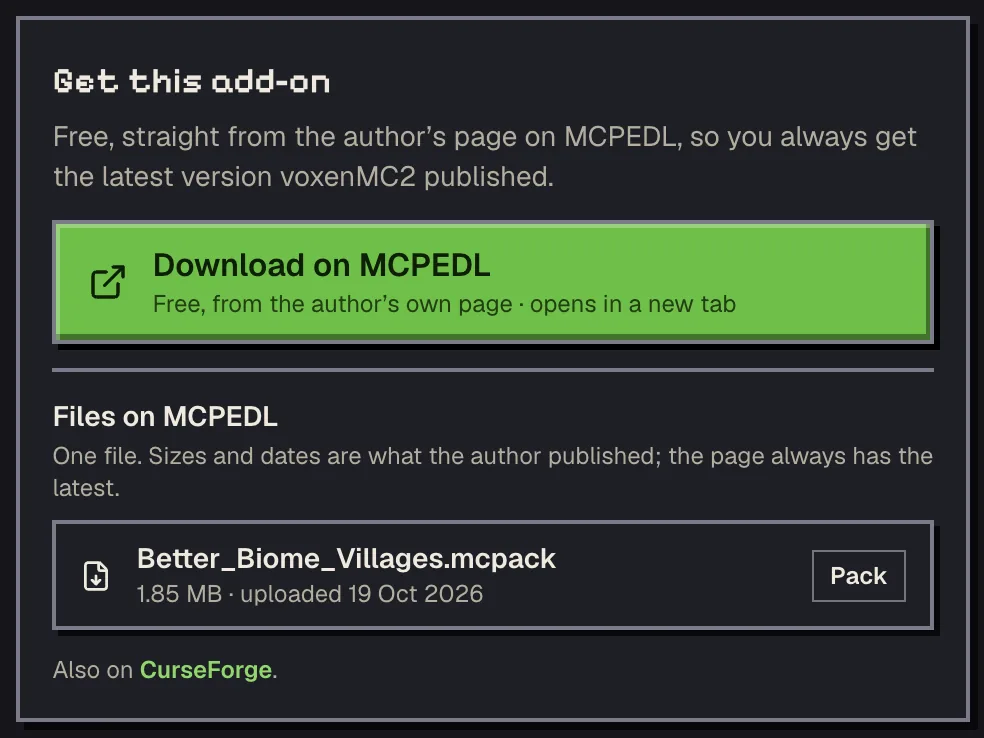
One thing to know about this site: we don't host any pack files. Every download button on a mod page opens the author's own page (MCPEDL for most of them), so you always get the version the author offers today and they keep the download count.
Importing on Windows, Android and iOS
Importing is the part where Minecraft copies the pack into its own storage. You do it once per file, and a banner at the top of the game says the import started and then that it succeeded. If you never see that banner, the file didn't reach Minecraft.
- Windows: double-click the file in your Downloads folder. Minecraft launches (or switches to the front) and imports it. If Windows asks which app to use, pick Minecraft and tick the box to always use it for that file type.
- Android: open the file from your Files or Downloads app and choose Minecraft when Android asks which app should open it. If the file manager you're using only offers to extract it, try a different one; the built-in Files app usually works.
- iOS and iPadOS: downloads land in the Files app. Open the Downloads folder, tap and hold the file, choose Share, and pick Minecraft from the app row. Tapping the file on its own tends to show a preview instead of importing it.
A .mcworld behaves the same way, it just shows up in your worlds list instead of a pack list. A .mctemplate waits under Templates on the Create New World screen. With those two you're done once the import banner appears.
Switching the pack on in your world
This is the step most people miss. An imported add-on sits in storage doing nothing until you attach it to a world. Open the world's settings (the pencil next to it on the Play screen, or the settings while you're creating a new world) and scroll the left side to Behavior Packs and Resource Packs.
- Open Behavior Packs, find the pack under Available, and press Activate.
- Open Resource Packs and do the same for the resource half. When a behavior pack depends on a resource pack, Minecraft often adds the second one for you; check that both appear under Active.
- If the author says the add-on needs an experimental toggle, scroll to Experiments in the Game tab and switch on exactly the ones they name. Don't flip on extras just in case.
- Load the world. New items usually show up in the creative inventory or the recipe book first, which makes a quick test easy.
Order matters when you stack several resource packs: the one at the top of the Active list wins when two packs change the same texture. Drag a shader or UI pack to the top if another pack seems to be hiding it.
Resource packs that only change the look, such as texture packs, UI packs and many shader packs, can also go under Settings → Global Resources. That applies them to every world without touching any world's settings. Behavior packs can't be added globally; they always belong to a world.
Skin packs, shaders and multiplayer
A skin pack .mcpack doesn't go near your world settings at all. After the import, open the Dressing Room and look for it among your classic skins and imported packs. The menus have moved around between updates, so search for the pack's name rather than a fixed tab. Want to see a skin before you commit? Our Skin Viewer shows any skin file in 3D.
Newer shader packs are built for Vibrant Visuals. If the author lists it as a requirement, turn Vibrant Visuals on in the video settings first, then activate the pack as a global or world resource pack. On a device that can't run Vibrant Visuals the pack simply won't show anything.
For a Realm, a server or a friend's world, the host is the one who installs. Add the packs to the world before uploading it to a Realm (or through the Realm's own world settings), and players who join download the resource packs automatically when they connect. A dedicated server needs the packs copied into its folders and listed for the world by whoever runs it.
Planning a fresh survival world for a big add-on? Pick the seed first: the seed map shows villages, structures and biomes around spawn for any Bedrock seed, and How to use the seed map walks through reading it.
When it doesn't work
Most failures come down to a handful of causes. Work down this list before deciding the add-on is broken.
- Import failed, or the file opens in another app: the ending is wrong (.zip, or a double ending like .mcpack.zip) or the wrong app is set as default. Rename it and use Open with → Minecraft.
- Duplicate pack: you already imported this pack, often an older version. Remove the old one from the world's Active list and from Settings → Storage, then import the new file.
- Imported fine, nothing changed in the world: the packs aren't active in that world, or only one half of a two-pack add-on is. Check both lists.
- Works in a new world but not an old one: some add-ons only change newly generated terrain, so travel to chunks you haven't visited yet.
- Pack shows a warning about the game version: the add-on targets a newer Minecraft than you have, or an older one that's since changed. Compare the versions listed on its mod page with your game and update if you can.
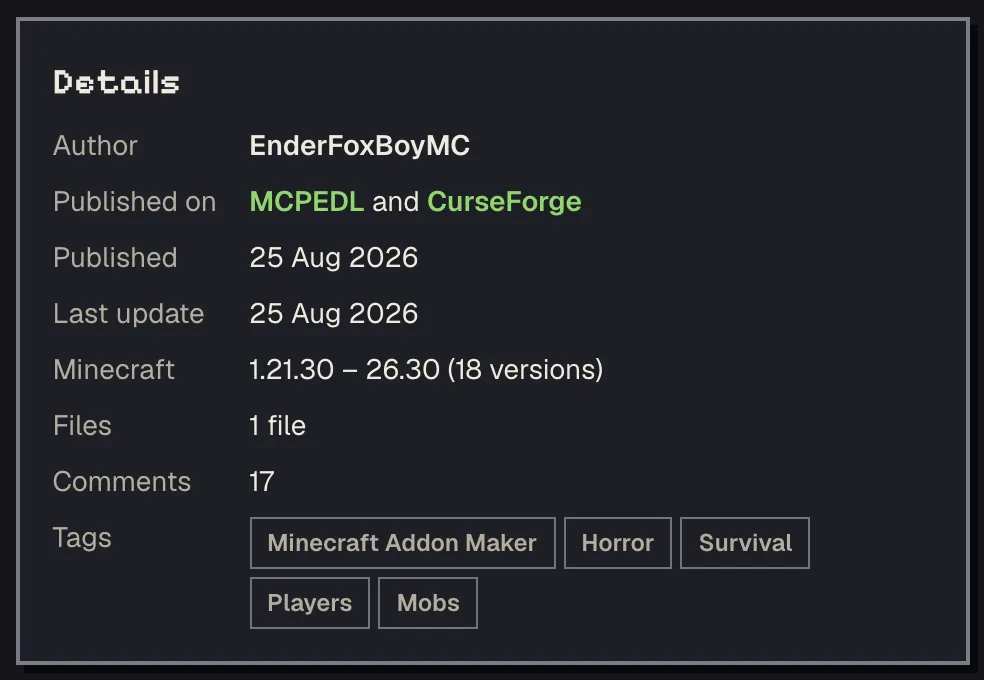
If none of that fixes it, the author's page is the place to ask. Comments there usually already mention the problem and the version it appeared in, and authors fix what gets reported.
Questions
Do I need both the behavior pack and the resource pack?
For most add-ons, yes. The behavior pack adds the logic (new mobs, items, rules) and the resource pack adds their models, textures and sounds. Without the resource half you'll often see invisible or purple-and-black things.
Why is my add-on doing nothing after a successful import?
Importing only copies it into Minecraft. Open the world's settings, go to Behavior Packs and Resource Packs, and activate it there. Global Resources only works for resource packs.
Will installing an add-on turn off achievements?
Usually, for that world. Behavior packs normally disable achievements; packs listed as achievement-friendly are made not to. The author's page says which kind you have.
Do my friends need to install the add-on to join my world?
No, the host installs it. When friends join your world, Realm or server, Minecraft downloads the resource packs to them automatically.
Can I download add-ons from Minecraft Tools?
No. We list add-ons, maps, texture packs and skins with screenshots and details, but every download button opens the author's own page, so you get the current file straight from them.
Related guides
Finders and tools in this guide
Written by the Minecraft Tools team from the same world-generation engine that runs the seed map. Coordinates quoted here were computed with it for the stated seed, edition and version, and the engine is tested against the real game.