How to Use the Minecraft Seed Map
JavaBedrockThe seed map draws your whole world from the seed, edition and version, with every structure on one canvas. Below, every control in the order you meet it, what the colours and icons mean, and a few habits that make the map faster than walking.
Updated · 7 min read · Java & Bedrock up to 26.3
Enter the world: seed, edition, version, dimension
Everything on the map follows from four inputs. The seed box takes a number or any text; text is hashed the way the game hashes it, so “chunkscout” and -1507551055 draw the same world. The edition switch selects Java or Bedrock, and the version list only offers versions whose generation the engine reproduces, grouped as Java, Java Large Biomes and Bedrock. The dimension control switches between the Overworld, the Nether and the End.

The version matters more than people expect. Pick the version the world was created in, or will be created in, not the version you are playing today. If you have the world on disk, the Load from save button reads a Java level.dat or a zipped world folder and fills in the seed, the version and the spawn for you; nothing is uploaded, the file is parsed in your browser.
Random picks a fresh seed, which is a quick way to learn what the map looks like before you have one of your own.
Read the canvas: colours, icons and the readout
The background is the biome map, the same data the game consults to decide what generates where. Oceans are blue, deserts sand, forests green, with a legend in the sidebar listing every biome currently visible. Hover anywhere and the readout in the corner shows the block coordinates, the chunk and the biome name under the cursor. Touch screens have no cursor, so there a long press drops a marker instead and its dialog shows the coordinates; the phone guide covers the rest of the touch controls.
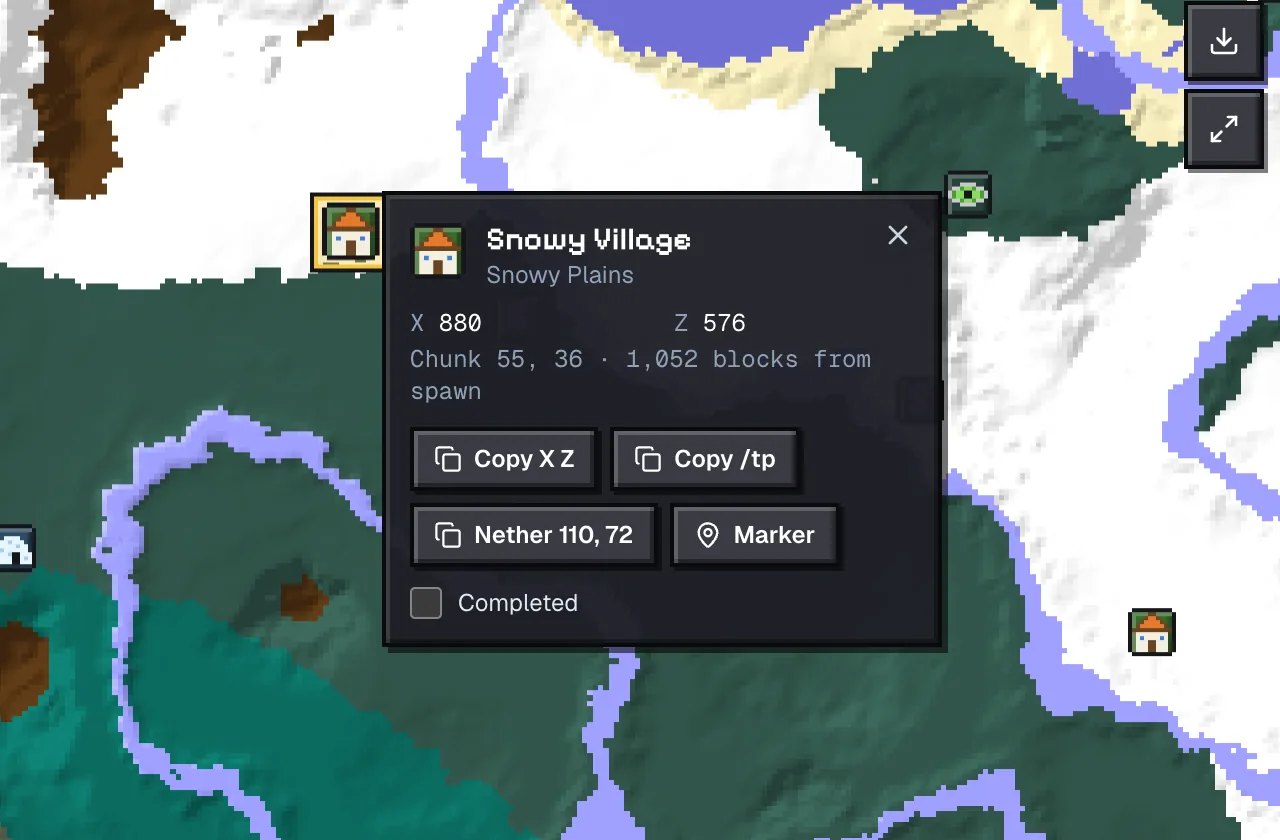
Icons mark structures. Hover one for its name and coordinates, click it for the popup: the exact X and Z, the variant where there is one (a desert village, a zombie village, an End ship), a Copy button for the coordinates, a ready-made /tp command, and a Completed checkbox that keeps a tick on structures you have already visited in that seed.
Zooming changes what is sensible to draw. Far out, the map shows biomes and the large structures; as you zoom in, chunk outlines appear and small features such as geodes and dungeons switch on. If a feature seems missing, zoom in one step.
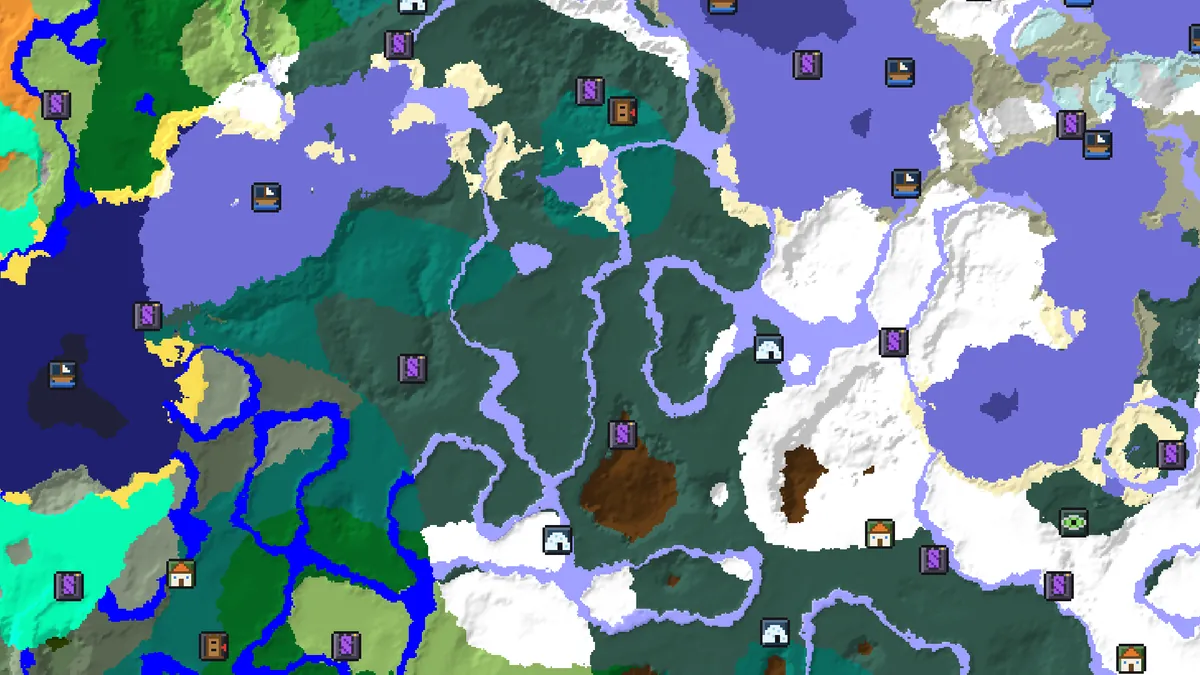
Open seed chunkscout on Java 26.3 and the pattern is obvious within a few seconds: spawn at 0, 0 in a snowy taiga, an igloo 600 blocks south at 96, 592, a pillager outpost at 256, -448 and the nearest village, a snowy one, at 880, 576.
Open seed chunkscout on the mapJava 26.3 · a snowy taiga spawn with igloos, an outpost and three first-ring strongholdsLayers and the feature panel
The feature panel lists every structure valid for the chosen edition, version and dimension, each with its accuracy badge. Switch types on and off individually, or use Select all and Select none. Structures the engine cannot place for Bedrock are shown as Java only; we would rather show nothing than a wrong spot.
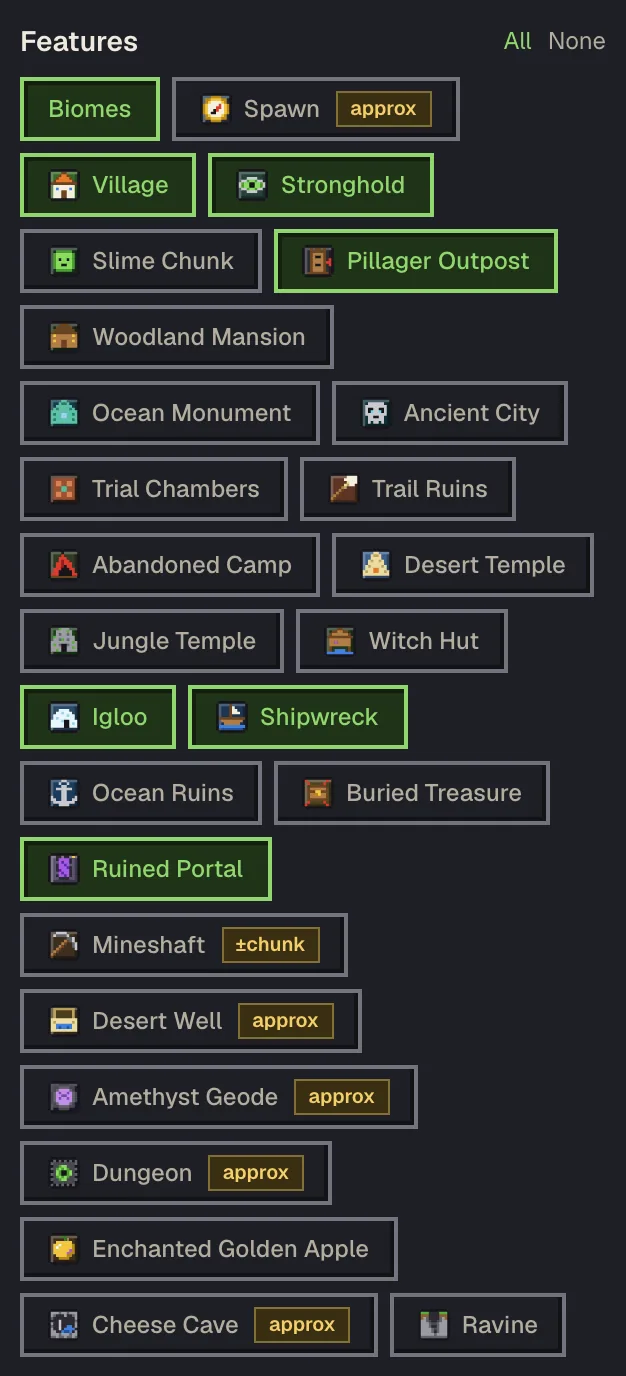
- Slime chunks hatch the chunks where slimes spawn below Y 40, using the Java formula or the seed-independent Bedrock one.
- Spawn chunks outline the chunks that stay loaded around the world spawn for the selected version.
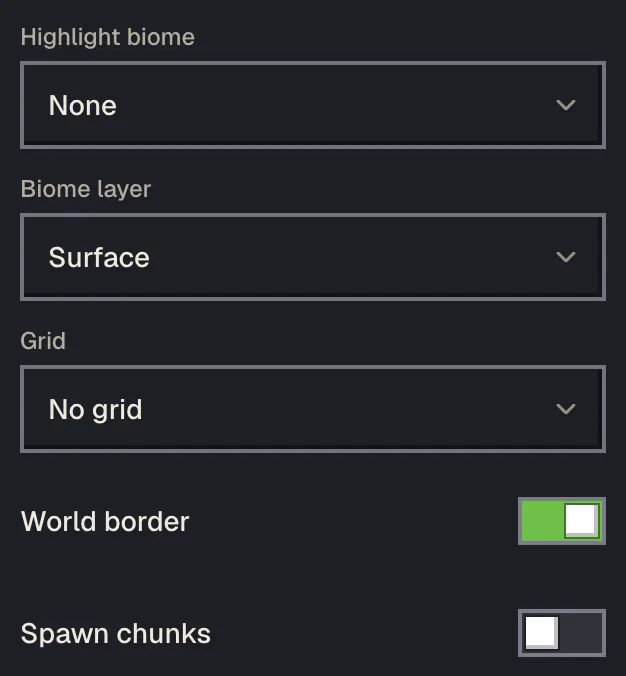
- Grid draws chunk borders (16 blocks), region borders (512 blocks, one .mca file each) and the 128-block cells of an in-game map.
- World border shows the 30 million block edge, mostly useful when you zoom all the way out.
- Highlight biome dims everything except one biome, which is the fastest way to spot a mushroom island, a cherry grove or a pale garden.
In the Nether the map uses Nether coordinates, so a portal at 800, 400 in the Overworld corresponds to 100, 50 here. The portal calculator does that arithmetic and tells you where the game will look for an existing portal.
Find the nearest anything
The Nearest list in the sidebar ranks the selected structure by distance from spawn, from the map centre, or from any X and Z you type. Click an entry to centre the map on it. For a new world it answers the questions that matter in the first hour: which village is closest, which stronghold is in the first ring, how far the nearest ancient city is.
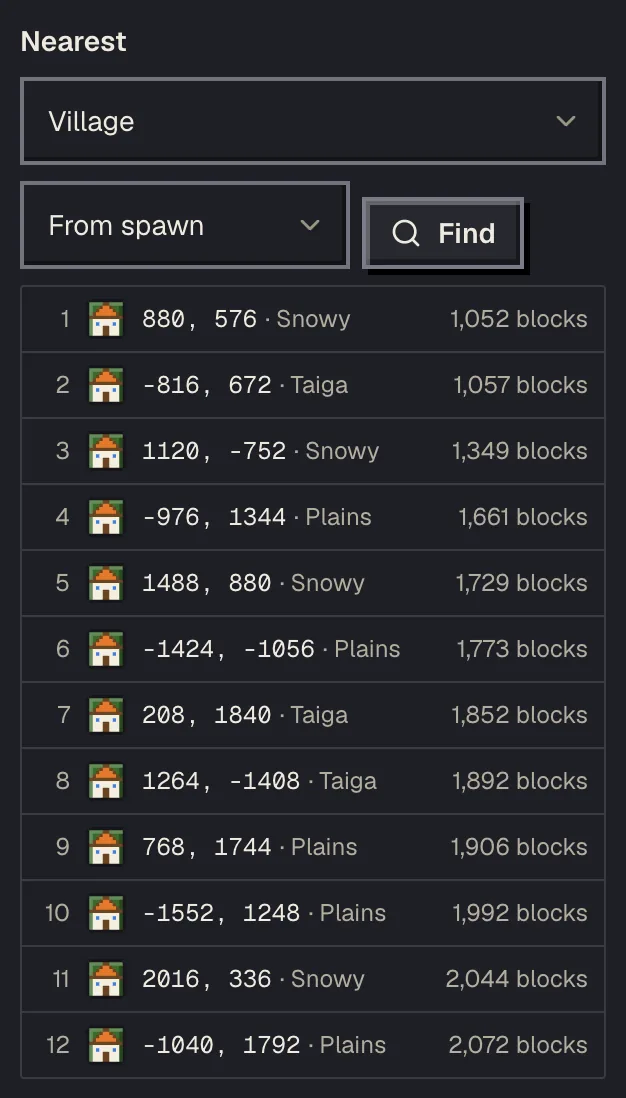
Searching works the other way round too. Find nearest scans outward from a point in rings until it hits the structure you asked for, and Find biome does the same for a biome. Asking for the nearest jungle from a spot 5,000 blocks out beats scrolling there.
When the AI assistant is switched on, signed-in players can also ask it in the drawer. It runs these same searches and moves the map to the answer, and it never invents coordinates: every position it quotes comes from a tool call on the engine.
Markers, links and exports
Right-click, or long-press on touch, to drop a marker with a name and a colour. Markers are stored in your browser per seed, so they come back whenever you open the same seed again, and signing in syncs them across devices. The markers and share links guide goes through markers, the Completed tick, bookmarks and links in detail.
Copy link puts the whole view in the URL: seed, edition, version, dimension, centre, zoom, the features switched on and any highlighted biome. Anyone who opens it sees what you see. The finder pages accept the same parameters, which is how the guides on this site link to a particular village or stronghold in an example seed.
Download PNG saves the visible map at screen resolution for a forum post or a server wiki; Pro adds an HD export for large prints.
Keyboard, touch and performance
| Key | Action |
|---|---|
| Arrow keys | Pan the map |
| + and - | Zoom in and out |
| R | Random seed |
| / | Focus the search box |
| Esc | Close the popup or drawer |
On phones the controls live in a bottom sheet so the map keeps the whole screen, and a full-screen toggle hides the header. Pinch to zoom, drag to pan, tap an icon for its popup.
All generation runs in your browser, in Web Workers running the cubiomes library compiled to WebAssembly. Your seed never leaves your device, and the server does no work per pixel. That is the reason the map stays fast on a busy day. The first load fetches about half a megabyte of engine code; after that, panning a new area costs only CPU time on your machine.
Questions
Why does the map show biomes instead of terrain?
The biome map is what the game uses to decide which structures and features generate where, and it is what the finders need. Terrain shading is available as an option for the Overworld, but the biome colours are the information that matters for planning.
Where is the structure exactly? The icon covers a whole chunk.
The popup gives the exact X and Z of the structure's starting point, which for most types is the chunk origin the game uses. Villages and mansions extend tens of blocks from that point, so look around once you arrive.
Can I use the map for a server world?
Yes, if you know the seed and the version the world was created in. Ask the server admin for the seed, or run /seed if you have operator rights. Chunks generated before a version change follow the older rules, so set the version that generated the area you care about.
Does the map work offline?
Once a page has loaded, generation needs no network at all, because it runs in your browser. Reloading the page needs a connection to fetch the site again.
Why is a structure marked approximate?
Some features depend on terrain the engine does not simulate fully, such as desert wells and geodes. The map shows the attempt position and marks it approximate so you know it may be cut off in the real world.
Related guides
Finders and tools in this guide
- Seed MapInteractive biome map with every structure, slime chunk and spawn point on one canvas.
- Spawn Point FinderSee the exact world spawn and the surrounding spawn chunks.
- Biome FinderSearch for any biome, from cherry groves to mushroom fields and deep dark.
- Slime FinderHighlight slime chunks for Java and Bedrock — build the perfect slime farm.
- Coordinate CalculatorConvert between block, chunk and region coordinates, and measure distance.
- Nether Portal CalculatorLink Overworld and Nether portals — coordinates ÷ 8 and search ranges.
Written by the Minecraft Tools team from the same world-generation engine that runs the seed map. Coordinates quoted here were computed with it for the stated seed, edition and version, and the engine is tested against the real game.